Playbooks
Meta Pixel Setup: A Step-by-Step Install and Test Guide
A pixel that isn't verified is a pixel you're guessing about. Here's the install, the test, and the one pairing that keeps your data honest after it goes live.

Setting up the Meta pixel means four things, in order: create it in Events Manager, install the base code (through a partner integration or manually in your site’s head tag), add the standard events that match your funnel, and verify every one of them fires correctly in Test Events before you spend a dollar on ads. Skipping the verification step is the single most common reason ad accounts report conversions that don’t match what actually sold.
Key takeaways
- Create the pixel once in Events Manager. One pixel per website is the standard setup.
- Install it through a partner integration (Shopify, WordPress) when one exists, or manually by pasting the base code into your site’s
<head>tag.- Add standard events, like Purchase or AddToCart, using the
fbq('track')function, matched to your actual funnel steps.- Verify every event in the Test Events tool before you launch. A pixel that hasn’t been tested is a pixel you’re trusting blindly.
- Pair it with Conversions API and a shared
eventIDso browser and server data deduplicate instead of double-counting.
Step 1: create the pixel in Events Manager
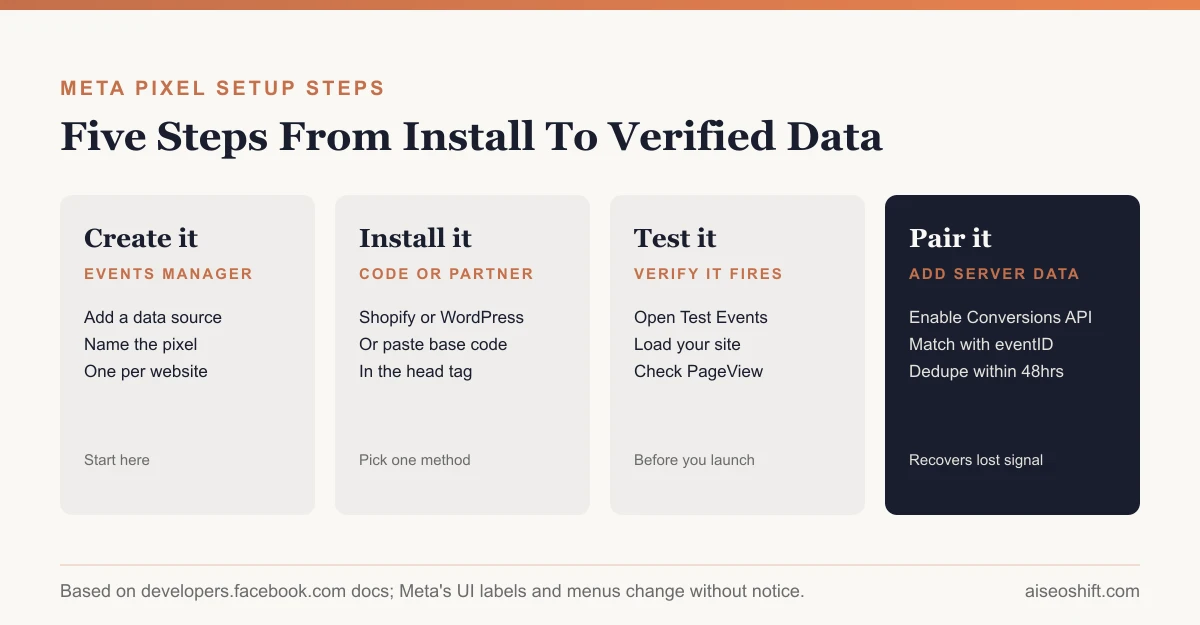
The pixel starts life inside Events Manager, reachable from Ads Manager. Meta’s own Get Started documentation describes this as adding a new data source and naming it, typically after the business or the site it’s tracking. One pixel per website is the standard pattern; most businesses don’t need more than one unless they’re running genuinely separate properties.
Once created, Events Manager gives you the base code: a short block of JavaScript tied to your pixel ID. That code is what everything else in this setup hangs off of.
Step 2: install it, through a partner or by hand
You have two real paths here, and which one applies depends on your platform.
Partner integration. If your site runs on Shopify, WordPress (through a plugin that supports Meta’s integration), or another platform with a native Meta connection, you typically paste your pixel ID into that platform’s own settings and the platform handles placing the code correctly across every page. This is the lower-risk path because it removes the chance of a page missing the script or the script landing in the wrong spot.
Manual install. Where no integration exists, Meta’s documentation is explicit: the base code goes “between the opening and closing <head> tags on every page” you want to track. That means every page, not just the homepage, since the pixel needs to load on each one to register a PageView and any event tied to that page.
Meta’s guidance also notes that an alternative <img> tag method exists for edge cases but is explicitly not the recommended approach. Stick to the head-tag script unless you have a specific reason not to.
| Install method | Where it’s used | What to watch for |
|---|---|---|
| Partner integration | Shopify, WordPress with a Meta plugin, other supported platforms | Confirm the pixel ID matches; the platform handles placement |
| Manual base code | Custom-built sites, platforms without a native integration | Must appear on every page, inside <head>, exactly once |
| Tag manager | Sites already running a tag manager | Supported, but not Meta’s top recommendation on its own |
Step 3: add standard events for your actual funnel
Standard events are Meta’s predefined set of common actions people take on a site, tracked through the fbq('track') function. A purchase confirmation page might call:
fbq('track', 'Purchase', {currency: "USD", value: 30.00});You don’t need every standard event Meta offers. Install the ones that match the steps someone actually takes before converting. For a typical store, that’s usually ViewContent, AddToCart, InitiateCheckout and Purchase, each tied to the moment it happens, loaded on page view for some events, tied to a button click for others. Meta’s documentation notes that optional parameters, like product IDs, categories and values, can ride along with these events and also feed custom audience building later.
Say you run a $40 skincare brand. Your funnel is probably: product page view, add to cart, checkout started, purchase completed. That’s four standard events, not the full list Meta supports. Installing events for actions nobody on your site actually takes just adds noise to your reporting.
Step 4: test it before you trust it
This is the step most setups skip, and it’s the one that catches real problems.
Open Events Manager’s Test Events tool, then load a page where the pixel should fire. Confirm the PageView event shows up with the correct URL. Then repeat for each standard event you installed, triggering the real action (adding to cart, starting checkout) rather than assuming the code works because it’s technically present on the page.
Meta also offers a browser debugging extension for this, previously known as Meta Pixel Helper, now described in Meta’s own documentation as checking “Pixel and Conversions API installation and event firing.” It flags common problems directly in the browser: duplicate pixel code on one page, the pixel loading outside the <head> tag, missing or blocked event parameters, or more conversion events firing on a page than make sense.
Troubleshooting common pixel problems
| Symptom | Likely cause | Fix |
|---|---|---|
| PageView never fires in Test Events | Pixel code missing or outside <head> | Reinstall in the <head> tag, or confirm the partner integration is actually active |
| Purchase events fire twice | Code added both manually and through a partner integration, or no dedup with server events | Remove the duplicate install; pair with Conversions API and a shared eventID |
| Event shows but with no value or currency | Parameters weren’t passed in the fbq('track') call | Add the parameter object with value, currency and any relevant IDs |
| Pixel fires on staging but not production | Base code only added to one environment, or a caching layer stripped the script | Confirm the code is in the live site’s template, not just a preview build |
| Events Manager shows fewer conversions than your store’s order data | Browser-only tracking losing signal to ad blockers, Safari’s tracking limits, or app-tracking opt-outs | Add Conversions API alongside the pixel |
Step 5: pair it with Conversions API
The pixel alone depends on a browser cooperating: loading the script, allowing it to run, and keeping cookies long enough to connect an event back to an ad. That’s increasingly unreliable on its own. Meta’s documented fix is running the pixel alongside Conversions API (CAPI), which sends the same events from your server instead of the browser.
The two systems stay in sync through a shared eventID: when a pixel event and a server event carry the same eventID and event_name, Meta treats them as one event rather than two, as long as they arrive within 48 hours of each other. Skip that pairing and a redundant pixel-plus-CAPI setup will double-count conversions, inflating what you think your campaigns are doing.
Our full walkthrough of Meta Conversions API covers the three setup routes Meta documents (partner integration, the hosted Conversions API Gateway, or a direct manual integration) and how to read your Event Match Quality score once it’s running. If your reported conversions already look lower than your actual sales, read our piece on server-side tracking for the broader context on why browser-only measurement keeps losing ground.
The bottom line
Pixel setup isn’t complicated, but it’s easy to half-finish. Create it once in Events Manager, install it through a partner integration where one exists, add only the standard events that match your real funnel, and don’t launch anything until Test Events confirms every one of them fires correctly. Pairing it with Conversions API afterward is what keeps that data accurate once ad blockers and browser privacy limits start chipping away at pixel-only tracking. If your campaigns ever look like they’re underperforming for no clear reason, check why Facebook ads stop delivering before assuming the creative is the problem.
Related guides
- What Is Meta Andromeda? Why Creative Is the New Targeting in 2026
- Best Meta Ads Courses in 2026 to Learn Facebook and Instagram Ads for Your Brand
- 10 Facebook Ads Strategies That Work After Meta’s Latest Updates (October 2026)
- Best Tools to Monitor Competitor Facebook and TikTok Ads in 2026 (Free and Paid)